

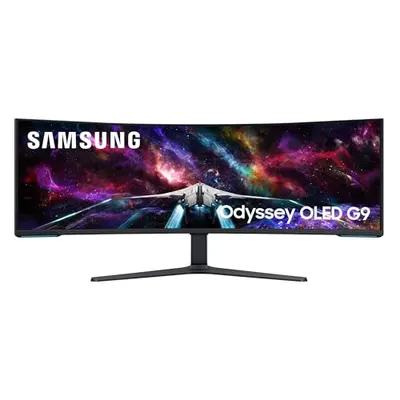
Sometimes you just wish your smartphone was a proper computer, don't you? Especially when you're out and about and need to get something done quickly on a bigger screen. That's exactly where Samsung DeX comes in. It's a feature that turns your phone into a kind of desktop PC. Sounds complicated at first, but it really isn't. I've had a closer look and I'll explain how to set the whole thing up and what you can do with it. Forget complicated instructions - this is your simple guide to Samsung DeX.
Key facts at a glance
Samsung DeX turns your phone into a desktop PC by connecting it to an external screen.
You can use DeX with a cable or wirelessly with a TV, monitor or PC.
The controls resemble a normal computer, with a taskbar and windows for apps.
You can use a keyboard and mouse, or turn your phone into a touchpad.
With DeX you can use Office apps, a browser and even some games in desktop mode.
Setting Up and Connecting Samsung DeX
Activating DeX and Pairing Your Phone
Samsung DeX turns your smartphone into a fully-fledged desktop PC. Setting it up really isn't difficult. First, you need to activate DeX on your phone. The easiest way is through the quick settings panel. You'll find a DeX switch there. Just tap it.
Next, choose how you want to connect your phone. There are two main options:
With a TV or monitor
For this you'll usually need a USB-C to HDMI cable or a suitable adapter. Simply plug your phone in and the DeX interface should appear on the external screen.
With a PC or laptop
This works either via a USB-C cable or even wirelessly, if your PC or laptop supports the necessary technology. That's really handy if you need to quickly get something done on a bigger screen.
As soon as the connection is established, you'll see the DeX interface on the external screen.
By this point it already looks quite like a classic desktop operating system, with icons, a taskbar and windows. Your phone is now ready to serve as your personal computer.
The DeX Interface and How to Use It
Desktop View and Window Management
When Samsung DeX starts up, you'll see an interface that's quite similar to a classic desktop operating system like Windows or Linux. Your app icons are in the top left, and there's a taskbar at the bottom of the screen, just like the one you know from your PC. Unlike on your phone, apps in DeX mode appear in windows that you can freely resize and move around. That's really handy, because it means you can have several programs open at once and arrange them side by side. Imagine writing an email while also having a document or a website open next to it - it makes working much clearer and more organised.
Window management is genuinely intuitive.
You can resize windows simply by dragging, maximise them, minimise them or close them entirely. It's very reminiscent of using a PC, just on your smartphone. Even apps that aren't really designed for DeX can often be used in a window via a special setting, although the display isn't always perfect.
The Taskbar in Detail
The taskbar is the heart of the DeX interface and gives you quick access to all the important functions. On the far left you'll find the start button, which shows you a list of all installed apps - similar to the Start menu in Windows. From here you can launch apps or right-click to pin them to the desktop so you can find them more quickly. Next to it you'll see icons for the windows currently open and the active apps. If you've connected a keyboard, it won't be shown separately here, but if you need one, you can bring up your smartphone's virtual keyboard using a button on the right-hand side. That's handy if you don't have an external keyboard to hand.
Further along the taskbar, on the right, you'll find controls for volume, screenshots and notifications. A small counter icon shows you how many new notifications you have. It's a genuinely good solution, so you never miss anything important.
Access to Quick Settings and DeX Labs
The quick settings buttons are also tucked away on the right of the taskbar. Here you can quickly turn things like Wi-Fi, Bluetooth or night mode on and off, without having to dig through your phone's menus. It saves time and makes things run more smoothly. If you want to explore DeX's advanced settings, you'll find them in the start menu under "DeX Labs". Here, for example, you can force apps that aren't natively compatible with DeX to resize properly. It's a nice feature that lets you use even less optimised apps in desktop mode. In the general DeX options, which you reach via a back arrow, you can then adjust things like font size, zoom level, the wallpaper or the taskbar mode. That way you can set up the DeX interface exactly how you like it.
The ability to adjust font size and zoom is a great feature, particularly for users with visual impairments. It shows that Samsung has thought about different needs, to make using the feature as pleasant as possible.
Input Devices for Samsung DeX
When you turn your smartphone into a fully-fledged desktop PC, you obviously need the right tools to work with it too. Luckily, Samsung is pretty flexible here.
Using a Keyboard and Mouse
The obvious option first: if you're using DeX on an external monitor or TV, you can simply connect a Bluetooth keyboard and mouse. It's almost like using a normal computer. Pairing is usually dead easy, and you can get started right away. If you connect DeX to a PC via a USB-C cable, you can even use the PC's own keyboard and mouse. That's really handy if you don't have separate Bluetooth devices to hand.
Turning Your Smartphone into a Touchpad
But what if you're out and about, or simply don't fancy carrying an extra keyboard around? No problem! Your smartphone itself can become a touchpad. Just open the quick settings on your phone and select the "Use phone as touchpad" option. Your phone's screen then turns black and becomes a responsive touchpad. You can use it to move the cursor around the DeX desktop and even use gestures to scroll through menus or zoom in and out. It's a genuinely clever solution when you need something quick.
Gesture Controls on the DeX Desktop
Gesture control is an important part of the touchpad function. Samsung has built in quite a lot to make the controls genuinely intuitive. Here's a quick overview:
Single tap
This works like a left click. It lets you select things, open apps or activate buttons.
Two-finger tap
This corresponds to a right click and opens the context menu with further options.
Two-finger swipe
This lets you scroll up, down, left or right. Very useful when you're working through long web pages or documents.
Two-finger pinch/spread
This is for zooming, whether you want to get closer to an image or make something appear smaller.
Touch and hold
This lets you select items or highlight text.
Touch, hold and move
This is for moving objects around the screen or for highlighting text.
Three-finger tap
This is the back function, which takes you back a level.
Four-finger tap
This shows you the app screen, meaning all your open applications.
Three-finger swipe up or down
This switches between "Recent apps" and the home screen.
The gestures might take a little getting used to at first, but once you've got the hang of them, you'll be surprised how quickly and easily you can navigate around DeX. It feels almost as natural as using a laptop.
It's genuinely impressive how versatile the input options are. Whether you prefer a full keyboard and mouse or would rather use your phone's touchpad function, DeX adapts to what you need.
Boosting Productivity with Samsung DeX
Samsung DeX turns your smartphone into a fully-fledged desktop workspace. That's not just handy - it can genuinely change the way you work. Imagine being able to edit your Office documents, browse the internet or even access your Windows machine - all from your phone.
Compatible Apps in Desktop Mode
Not every app is natively optimised for DeX mode, but a lot of them work well anyway.
Most Android apps run in a window that you can move and resize, just like on a PC.
That's already a big advantage. Programs like Google Chrome, Microsoft Office apps (Word, Excel, PowerPoint), OneNote, Skype and even a few games are adapted for DeX. That means they make better use of the bigger screen and offer an interface that feels more suited to a desktop. In Chrome, for example, you get a tab bar, much like on a computer.
For apps that aren't directly compatible with DeX, there's a trick. In "DeX Labs" (accessible via the DeX settings), you can force these apps to open in a window too. It doesn't always work perfectly, but it's often better than nothing, and it lets you use even lesser-known programs in desktop mode.
Working with Office Applications
If you work a lot with documents, spreadsheets or presentations, DeX genuinely changes the game. You can create and edit Word documents, analyse Excel spreadsheets or put together PowerPoint presentations, just as if you were sitting at a normal computer. Working with a mouse and keyboard makes the whole thing very intuitive. You no longer have to jump back and forth between different apps on your phone - instead, you have everything neatly arranged in windows on a big screen.
Working with Office applications becomes noticeably more pleasant thanks to the desktop interface. You can highlight, copy and paste text, enter formulas in Excel or rearrange slides in PowerPoint, without having to fight your way through small touchscreen interfaces. It simply feels more natural.
Remote Access to a Windows PC
This might be one of the most impressive features of DeX: you can access your Windows PC via a remote desktop app. Imagine you're out and about and need to quickly get to a file on your office PC, or use a program that's only installed there. With DeX and the right app, that's no longer a problem. Your smartphone becomes a remote control for your desktop computer.
This works over an internet connection. You install a remote desktop app on your phone and then connect to your Windows machine.
That way you can control your PC as if you were sitting right in front of it.
This is especially useful if you don't always want to carry your laptop around, but still need the full power of your PC. With services like Microsoft's Windows 365, it all becomes even easier, since you don't even need your own PC any more - you just use the cloud instead.
DeX and Samsung's Newest Devices
Galaxy Z Flip 7 with DeX Functionality
Samsung has introduced something new with the Galaxy Z Flip 7: the DeX function is finally available on the foldable phones too. That's really handy when you need a bit more space. You simply connect your phone to an external monitor, and you've got a desktop interface straight away. Of course, for the full experience you'll still want a mouse and keyboard, but the option is there. It's a big step for the Flip series, since DeX used to be reserved mainly for the larger Galaxy models.
Galaxy Z Flip 7 FE and DeX
Even though Samsung hasn't officially announced the "FE" (Fan Edition) model of the Z Flip 7 yet, it's very likely that this device will bring DeX functionality too. Samsung has already shown with the Z Flip 7 that it wants to build DeX into its foldable phones. The "FE" model is usually a somewhat cheaper variant with similar core features. So it's reasonable to expect that the Z Flip 7 FE will also let you turn your smartphone into a desktop mode. That would be great news for anyone who doesn't need the absolute top model but still doesn't want to miss out on desktop functionality.
Comparing DeX Capabilities
The DeX capabilities on newer Samsung devices, particularly foldables like the Z Flip 7, represent real progress. DeX used to be mainly a feature for the flagship series, like the Galaxy S range. Now we're seeing it on the Folds, and on the Flips too. That means Samsung is spreading the technology further and making it more widely accessible. The core functionality stays the same - a desktop interface on an external screen - but the way it's built into different device classes shows how important this feature is to Samsung. You can expect the DeX experience on the Z Flip 7 to be similarly good to that on an S model, even though the hardware is naturally different. It's a sign that Samsung is turning its devices into increasingly versatile tools that go far beyond simple smartphone use.
Conclusion: Your Phone as a Desktop Powerhouse
So, if you've got a Samsung phone and fancy trying something different, DeX really is a cool option. It's not just a nice gimmick - it can genuinely help you be more productive, whether you want to quickly write an email or browse the internet. Setting it up isn't difficult, and the controls are pretty intuitive once you've got used to them. Sure, it doesn't replace a fully-fledged PC for everything, but for many tasks it's more than enough. Give it a go - you might be surprised by what your smartphone can do!
Frequently asked questions
What exactly is Samsung DeX?
Imagine your phone suddenly turning into a computer! Samsung DeX is a great feature that lets you connect your smartphone to a bigger screen. The whole thing then looks like a normal computer desktop, complete with windows and everything else you'd expect. That way you can work much more comfortably or browse the internet.
How do I start Samsung DeX?
It's really simple. Pull down the quick settings panel from the top of your phone and tap the DeX icon. Then choose whether you want to connect it to a TV, monitor or laptop. Most of the time you'll need a USB-C cable for this, but sometimes it also works wirelessly.
Do I need extra accessories for DeX?
Not necessarily. You can of course connect your phone to a TV or monitor with a cable. But to make it really feel like a PC, a Bluetooth keyboard and mouse come in very handy. You can also use your phone itself as a touchpad if you don't have anything else to hand.
Which apps work with Samsung DeX?
Lots of apps you already know from your phone also run well in DeX. These include programs like Word, Excel or PowerPoint, as well as browsers like Chrome. Even some games and photo apps are included. If an app doesn't look quite right, there's often a setting to adjust it and make it work better.
Can I also access my PC with DeX?
Yes, you can! With special apps, you can even use Samsung DeX to access your normal Windows computer, as if you were sitting right in front of it. That's really handy if you want to get to your files or programs on your PC while you're out and about.
Do new foldable phones like the Galaxy Z Flip 7 also support DeX?
Yes, that's one of the great new things about the Galaxy Z Flip 7! It now supports the DeX function too. That means you can use a desktop mode with this stylish foldable phone as well, if you connect it to an external screen. It makes it even more versatile.