


Samsung DeX: how your smartphone turns into a PC
Samsung DeX is a brilliant solution that turns your Samsung smartphone or tablet into a fully-fledged PC. Whether you're in the office, at home or on the go, DeX lets you get your work done, watch films or play games, all on a big screen. It's like a compact office you can always carry in your pocket. In this article, we'll show you how to set up Samsung DeX, which devices are compatible and how to get the most out of it. Let's dive into the world of DeX together.
Samsung DeX turns your smartphone into a PC.
Compatible with many Samsung devices.
Easy setup, wired or wireless.
Perfect for work and entertainment.
Expand what you can do with accessories.
An introduction to Samsung DeX
What is Samsung DeX?
Samsung DeX is an innovative technology that turns your Samsung smartphone or tablet into a kind of
mini PC
. DeX stands for "Desktop Experience".
With DeX, you can connect your mobile device to a monitor and use it just like a desktop computer.
All you need is a compatible device and the right accessories to get started. The interface resembles familiar systems like Windows or Linux, which makes it easy to get to grips with.
The history and development of DeX
Samsung introduced DeX back in 2017. In the beginning, using DeX came with a few challenges, but over time Samsung has steadily improved the technology. Today, DeX is a stable and genuinely useful solution for anyone who wants to work on the go without lugging a laptop around. Thanks to ever more powerful smartphones, DeX has developed into a practical feature used in both professional and everyday life.
The benefits of using DeX
Using Samsung DeX comes with a number of benefits
Mobility
You can work anywhere, as long as you have a screen available.
Multitasking
DeX supports multiple windows, so you can switch between different apps with ease.
Compatibility
Many Android apps are compatible with DeX, which makes using it much easier.
Cost-effectiveness
Instead of investing in an expensive laptop, you can simply use the smartphone you already own.
Samsung DeX isn't just a gimmick — it's a genuine alternative for anyone who wants to work flexibly, independent of location.
Setting up and starting Samsung DeX
Getting started with Samsung DeX
Samsung DeX is a handy feature that turns your Samsung smartphone into a desktop-like computer.
Setting it up is surprisingly straightforward
and takes only a few steps. First, you'll need a compatible Samsung device and the DeX software, which you can download from Samsung free of charge.
Open the "Quick settings" menu on your smartphone or tablet by swiping down from the top of the screen.
Select "DeX" there.
Start the DeX software on your computer.
Connect your device to the computer with a USB cable and wait for the DeX interface to load.
Once everything is set up, you'll see the DeX interface on your computer screen and can control it with a mouse and keyboard.
Activating DeX on different devices
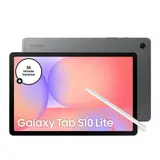
DeX doesn't just work on smartphones — it also works on tablets. On a Samsung tablet, you activate DeX by opening "Quick settings" and selecting "DeX". If you connect a Samsung keyboard, the tablet automatically switches into DeX mode. Alternatively, you can also use DeX without a keyboard.
Note: when switching between the Android view and DeX, open apps may close. So save any important documents beforehand.
Connection options: wired and wireless
You can connect your device either with an HDMI cable or wirelessly to a compatible screen. With the wired method, DeX detects the connection automatically, with no further confirmation needed. For a wireless connection:
Make sure your PC and phone are on the same network.
Open the "Quick settings" menu and select "DeX".
Start the DeX software on your computer.
Choose the computer you want to connect to and confirm the connection.
Whether wired or wireless, using DeX gives you a flexible way to use your smartphone or tablet more efficiently.
Compatible devices for Samsung DeX
Supported Samsung smartphones
Samsung DeX is compatible with a wide range of Samsung smartphones.
The flagship models in particular
offer support for this innovative desktop experience. Here are a few of the supported models:
Samsung Galaxy S9 series
Samsung Galaxy S10 series
Samsung Galaxy S20 series
Samsung Galaxy S21 series
Samsung Galaxy Note8, Note9, Note10 and Note20
Samsung Galaxy Z Fold series
These devices let you make the most of DeX's full potential, turning your smartphone into a
nearly
complete desktop environment.
Supported Samsung tablets
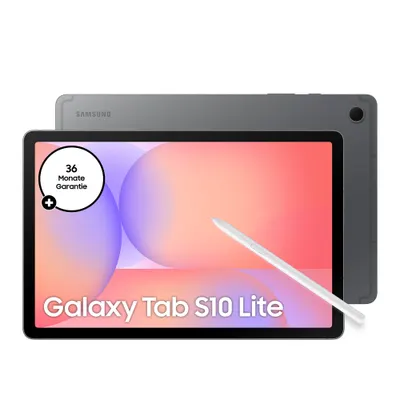
Samsung tablets work with DeX too. The Galaxy Tab series in particular is worth highlighting:
Samsung Galaxy Tab S4 series
Samsung Galaxy Tab S5e series
Samsung Galaxy Tab S6 series
Samsung Galaxy Tab S7 series
These tablets let you stay productive on the move and offer a great way to use DeX as a laptop replacement.
Future compatibility updates
Samsung is continuously working to expand DeX compatibility. In future, more devices and models could be supported, giving even more users access to this flexible way of working.
Samsung DeX could support even more devices in the near future, which would significantly broaden what's possible. Keep an eye out for upcoming updates, which may well turn your current device into a powerful desktop experience too.
Samsung DeX in everyday work
Working efficiently with DeX
Imagine being able to leave your laptop at home and still stay productive wherever you are.
Samsung DeX makes that possible.
You can simply connect your smartphone to a monitor and you instantly have a desktop-like environment. That means you can open multiple windows, move files around with drag-and-drop, and use apps just as you would on a PC. Especially in times when flexibility matters, DeX offers a practical solution for working on the move.
Useful apps for DeX
There are plenty of apps that work brilliantly with Samsung DeX. Here are a few that are especially handy for everyday work:
Microsoft Office Suite
: edit Word documents, Excel spreadsheets and PowerPoint presentations straight from your smartphone.
Google Workspace: use Google Docs, Sheets and Slides for seamless collaboration.
Slack: stay in touch with your team, wherever you are.
Tips for professional use
If you want to use DeX for everyday work, there are a few things worth bearing in mind:
Check your connection options: think about whether you prefer a wired or wireless connection. Both have their pros and cons.
Use peripheral devices
: a Bluetooth keyboard and mouse can make things noticeably easier to use.
Keep your data in sync: make sure all your important files are either stored on your smartphone or accessible via cloud services.
Samsung DeX offers a flexible way to use your smartphone as a fully-fledged workspace. Whether in the office, working from home or on the move, with DeX you have everything you need, always with you.
Samsung DeX for entertainment
Streaming and media playback with DeX
Samsung DeX turns your smartphone into a handy streaming device.
With just a few taps
you can connect it to your smart TV and enjoy content directly on the big screen. Whether it's films, series or music, everything plays back comfortably through DeX. Another advantage: you can still use your smartphone as a remote control while content plays on the TV.
Gaming on DeX
For gamers, Samsung DeX offers an exciting way to experience mobile games on a bigger screen. Simply connect a controller, or use a mouse and keyboard, to improve your gaming experience. Games like Asphalt 9 or Fortnite feel completely different on DeX. Controls are more precise and gameplay runs more smoothly, making for a more immersive gaming experience.
Multimedia apps for DeX
Thanks to support for numerous apps, DeX is also a genuine multimedia all-rounder.
Popular
apps like YouTube, Netflix or Spotify run smoothly in DeX mode. You can even use several apps at once, for example listening to music while browsing the internet. DeX's multitasking capabilities make it easy to switch between different applications without losing track of things.
With Samsung DeX, your smartphone becomes a versatile entertainment hub. Whether it's streaming, gaming or multitasking, the possibilities are nearly limitless. Discover the freedom DeX gives you, and enjoy entertainment in a whole new dimension.
Accessories for Samsung DeX
Recommended peripherals
If you want to get the most out of Samsung DeX, certain accessories are genuinely useful.
A mouse and keyboard
are pretty much essential if you want the full desktop experience. Almost all modern
Bluetooth
models work without any issues. A USB-C to HDMI adapter also comes in handy for connecting your smartphone or tablet to a monitor.
DeX Station and DeX Pad
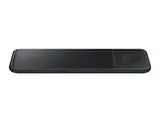
The DeX Station and DeX Pad used to be the go-to way of turning your smartphone into a desktop PC. These days, though, they're a bit dated and no longer fit with current Samsung devices. Instead, a simple multiport adapter that supports USB, HDMI and Ethernet is often all you need.
Getting more out of DeX with accessories
To get the best out of Samsung DeX, there are a few more accessories worth considering:
Multiport adapter
: expands your device's connectivity with USB-A, Ethernet and HDMI.
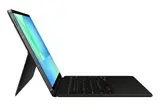
Official Samsung docking keyboards
: especially useful for tablets, giving you a laptop-like experience.
External storage devices
: handy for transferring data quickly and easily.
With the right accessories, your Samsung device becomes a genuine all-rounder, ideal for both work and entertainment. A few smart investments in peripherals are well worth it if you want to get the full comfort and functionality out of DeX.
Common issues and fixes for Samsung DeX
Fixing connection issues
If Samsung DeX isn't working as expected, it could be down to a connection issue.
A common mistake
is that the smartphone or tablet isn't properly connected to the monitor or TV. Here are a few steps to check:
Check the HDMI cable
Make sure the cable is firmly connected and that the correct HDMI channel is selected on the TV or monitor.
Wireless connection
Check that both devices are on the same Wi-Fi network if you want to use DeX wirelessly.
Use Quick settings
Check whether DeX is switched on in Quick settings.
Improving DeX performance
Sometimes DeX can feel slow or sluggish. Some
optimisation
can help here
Close background apps
Close any apps you don't need to improve performance.
Check for updates
Make sure both the operating system and the DeX software are fully up to date.
Restart your device
A simple restart can often work wonders and boost performance.
Troubleshooting DeX
Problems can also come up while using DeX. Here are a few troubleshooting tips:
Software updates
Keep the DeX app and the operating system fully up to date to avoid known bugs.
Check your storage space
Make sure there's enough free storage space on your device.
Reinstalling
If nothing else works, reinstalling the DeX software can help.
Samsung DeX is a great way to get more out of your smartphone. Despite the occasional hiccup, it offers a flexible platform for both work and leisure.
The future of Samsung DeX
Expected developments and updates
Samsung DeX keeps evolving. Upcoming updates promise even more seamless integration between mobile devices and desktop environments.
Particularly exciting
is the prospect of extended features that could make using DeX even smoother. The interface is expected to keep improving, giving users a more intuitive experience.
How Samsung DeX compares with other solutions
Compared with other similar technologies, Samsung DeX stands out for its simplicity and versatility. While other solutions often require special hardware or software, DeX offers
flexible
use straight from your smartphone or tablet. This makes it an appealing option for anyone who wants to use their mobile device as a fully-fledged computer.
Samsung's vision for DeX
Samsung has a clear vision for DeX: bringing mobility and the desktop experience together. The goal is for users to need just a single device to stay productive both in the office and on the move. This vision could fundamentally change the way we use technology in everyday life.
Samsung DeX is more than just a feature — it's a step towards a future where the lines between mobile and stationary devices blur. The ongoing improvements and refinements show that Samsung is fully committed to this vision.
Conclusion
Samsung DeX is an exciting way to make the most of your smartphone or tablet's full potential. It turns your device into a flexible workspace that's useful both in the office and on the move. Setup is simple and using it feels intuitive, making it a practical solution for anyone who regularly switches between different working environments. Of course, there's still room for improvement, but the idea of always having a powerful device in your pocket is already impressive. If you're looking for a way to turn your smartphone into a PC, Samsung DeX could well be the right choice for you.
Frequently asked questions
What is Samsung DeX?
Samsung DeX is a feature that turns your Samsung smartphone or tablet into a desktop-like environment. That means you can use your device just like a computer, with a monitor, a mouse and a keyboard.
Which devices support Samsung DeX?
Samsung DeX is supported by many premium Samsung devices, including the Galaxy S9, S10, S20 and S21 series, the Note8, Note9, Note10 and Note20 series, and some Samsung tablets such as the Galaxy Tab S7.
How do I set up Samsung DeX?
To set up Samsung DeX, simply connect your device to a monitor via a DeX Station, DeX Pad or HDMI cable. Follow the on-screen instructions to launch the DeX interface.
Can I use Samsung DeX wirelessly?
Yes, Samsung DeX can also be used wirelessly by connecting your device to a compatible monitor or TV over a shared Wi-Fi network.
What are the benefits of using Samsung DeX?
With Samsung DeX, you can turn your smartphone or tablet into a fully-fledged workspace, letting you work with multiple apps and windows on a bigger screen.
Are there accessories that improve the Samsung DeX experience?
Yes, accessories such as a Bluetooth mouse and keyboard, as well as the DeX Station or DeX Pad, can significantly improve the Samsung DeX experience by making it more comfortable to use.